Welcome to Weather-Above
Audio Notetaker is a revolutionary software package to help with navigating, annotating and organising digital recordings. Ideal for lectures, meetings and interviews.


The application I use is called tape machine it is available on the android market there is a light version which is free, and a full version.There are many applications for recording notes on the android market, I chose this one because of the way the microphone works, it can automatically set the microphone levels, you can choose to use the front microphone or the back microphone, and there are features which you can add more audio to an existing recording. Start the application and you will see a screen similar to Fig 1 before recording any note files please go to the settings, you do this by tapping on your android smartphone menu this will change the bottom icons which is shown in Fig 2, next tap on the tools icon this will open another menu, see Fig 3 , then you tap on settings.
These are the following settings I use ( show status bar- this is ticked) (monitoring- this is ticked) (default file format set this toWAV) , (audio source front mic)
(codesI have installed the MP3 code) the MP3 code is available as an alternative download from the application website.
Now we're ready to record, press the round icon you will see the icon turn to red indicating that you are in recording mode nothing will record until you press the green flashing icon, record your message when you've finished recording the file will be saved automatically in a folder on your smartphone, the folder is called /media/tapes this is where your recordings are saved automatically, there is a really good help file just click on the help icon.
The next stage is to get the recording note to your computer where you can import it into audio notetaker. The easiest way is to e-mail your laptop/computer where you have your audio notetaker software installed you do this by selecting the menu on your HTC smart phone then select the open icon then tap on the audio file you would like to send to your laptop/computer. Select the menu on your HTC smart phone, this will bring up the icons in fig 2, selected tools icon this will bring up the tools menu and select send it gives you options of Bluetooth, Gmail, mail I use the mail icon which works perfectly for my set up.
Another way is to use your USB data cable that came with your HTC smart phone , when your phone is being detected by your computer you simply select from your phone menu and select mount to computer , you then click on your computer start menu, then click on my computer this will display your computer discs drive and you should see one from your phone, double-click on the removable disk drive and go to the /media folder then select the tape folder you will see your audio note file that you created from your HTC Smart phone simply drag the audio recording to your desktop.
The next stage is to run your audio notetaker software and import the file for your desktop then you can start to edit/add images/and text description to get the most out of audionotetaker I recommend going through the training audio help files it only takes about 5 mins.
This is how I use my HTC smart phone with audio notetaker
fig 1
fig 2
fig 3
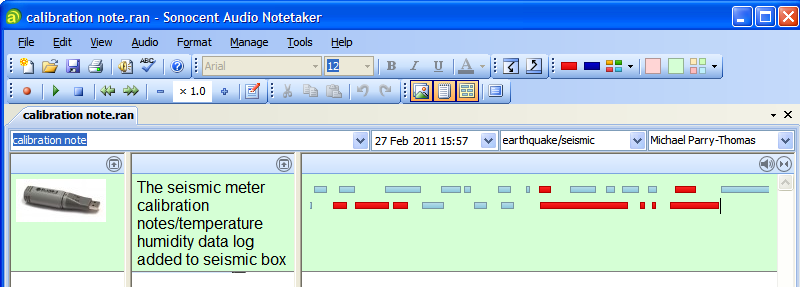
I find recording my notes really easy, no more struggling with pen and paper. When I write a note after several days I cannot understand what I have written as my dyslexic gets the better of me this is where audio notetaker comes in. After I've imported my audio file into the audio notetaker I start to highlight important phrases then I type a category, and a description and place an image which is relevant to the note file.